
Org Settings: Managing Designations in Raisely
Introduction to Designations
Transparency and donor intent are at the heart of successful fundraising. To support this, Raisely provides Designations—a feature that allows organisations to categorise incoming revenue and allows donors to choose exactly where their contribution goes.
Whether you are managing a specific relief fund, a scholarship program, or general operating costs, Designations ensures that every dollar is tracked accurately from the moment it’s given.
Your account will include a default General designation. This ensures that every transaction is categorised, as a designation is now a mandatory field for all incoming donations.
What are Designations?
A Designation is a label or category assigned to a transaction that identifies the specific purpose or fund the money is intended for. In Raisely, Designations are managed at the Organization level and can be applied across all your campaigns.
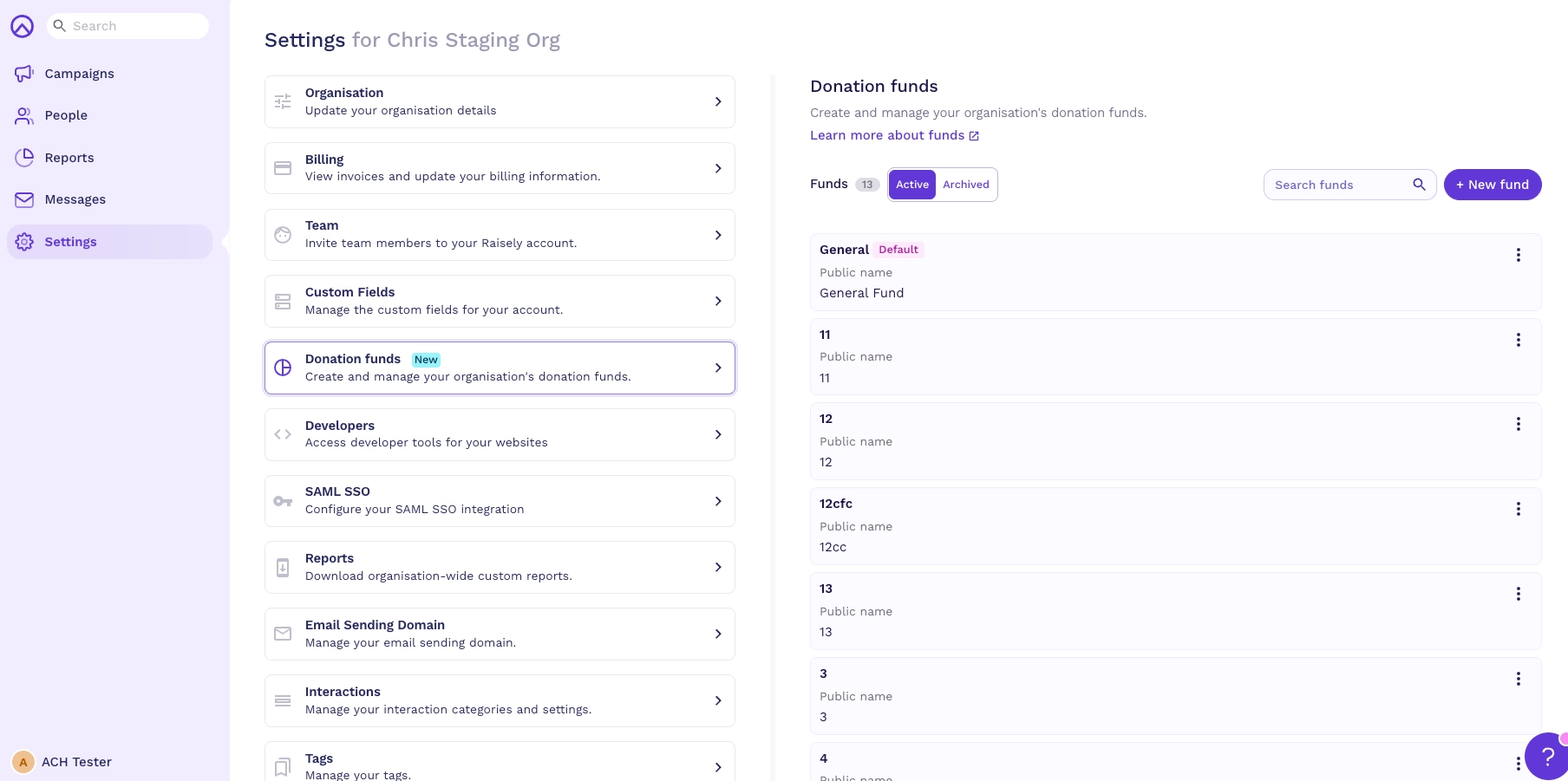
If you have Organisation Admin or Campaign Admin permissions, you have full control over how Designations are structured:
- Create and Manage: Add new designations with both Internal Names (for your accounting team) and Public Names (for your donors).
- Archive and Unarchive: While designations cannot be deleted (to maintain financial records), they can be archived when no longer in use. You can always unarchive them if a specific fund becomes active again.
- Set Defaults: Choose a default designation for your entire organization, or override it with a specific default for individual campaigns.
- Ticket Integration: Designations aren't just for donations. You can assign a designation to an entire ticket purchase for events, ensuring the registration fees go to the right place.
Why Use Designations?
- Donor Intent: Modern donors want to know exactly how their money is being used. Designations provide the transparency they expect.
- Financial Tracking: Simplify your bookkeeping by aligning your Raisely data with your internal accounting funds.
- Compliance: Many non-profits are legally required to track restricted vs. unrestricted funds. Designations makes this process easier.
- Integration Ready: By making this a mandatory field, your data is structured perfectly for future integrations with our other nonprofit operations platforms like Aplos (fund accounting) and Keela (donor management).
The Donor Experience
When you enable Designations on your donation form, donors gain the power of choice. On the donation form, they will see a dropdown or selection list (using the Public Name you’ve chosen) where they can select the specific cause they wish to support.
This choice is then recorded as a field on their donation record, providing them with the confidence that their contribution is being handled according to their wishes.
How to Enable Designations in Raisely
Designations are turned off by default. If your organisation wants to direct donations to specific funds, you can enable the feature from your org settings.
To turn on designations, go to Organisation Settings → Donation Designations and toggle Enable Designations on.

Once enabled, designation options will appear across:
- Campaign Settings — The default designation will automatically be assigned as the Campaign Default as well. You can assign a new default designation and add other options to individual campaigns here.
- Donation forms — donors can choose which designation their gift supports when you add multiple designation options
- Reports — donation records will include designation attribution
If designations are not right for your organisation, you can turn the toggle off at any time. All related UI will be hidden from your campaigns and forms.
How to Manage Designations in Raisely
1. Managing Organization-Wide Designations
- Navigate to Organization Settings > Donation Designations.
- To add a new designation, click Add New.
- Enter the Internal Name (for your eyes only) and the External Name (what donors see).
- Tip: Make your internal names specific. Use codes or specific accounting names (e.g., 2024-EDU-SCHOLAR) for your Internal Name to make EOFY reporting easier.
- Tip: Use meaningful labels for external names. This is what your donors will see, so ensure it is clear and inspirational (e.g., "Send a Child to Camp").
- Toggle Set as Default if you want this to be the standard selection for new campaigns.
2. Configuring a Campaign
- Enter the specific Campaign you wish to edit.
- Go to Settings > Donation Form Settings > Designations.
- Choose a Default: Select the primary designation for this campaign. Always double-check your campaign-level default before launching a new appeal to ensure the money is being routed correctly.
- Allow Donor Choice: Toggle this on to select multiple designations that will appear on your donation form.
- Edit Display Text: Customise the label or instructions donors see when choosing their fund.
3. Archiving Old Funds
If a fund is no longer needed, click Archive. To see old funds or bring one back, toggle to the Archive tab and select Unarchive. This is particularly helpful for avoiding duplicate names.
Frequently Asked Questions
### accordion
## expand
# Can we assign one donation to more than one designation?
No. Each donation can only have one designation, because there is a single designation field on the donation record. If you have a use case that requires multiple designations per donation, reach out to the Raisely team to discuss.
## expand
## expand
# Do the designation settings only appear if Aplos (fund accounting) is already connected as an integration?
No. Designations are a feature for all Raisely customers, regardless of whether an Aplos integration is connected.
## expand
## expand
# Do Designations apply to recurring donations?
Yes. This applies to all donation frequencies.
## expand
## expand
# Are there limits to the number of designations an organisation can create?
No. There are no limits.
## expand
## expand
# Does an admin need both Org Admin and Campaign Admin permissions to manage designations?
No. A user with Campaign Admin permissions can select from existing designations when configuring a campaign. To create, edit, or manage designations in Org Settings, a user needs Organisation Admin permissions.
## expand
### accordion