
Introduction to Designations
Transparency and donor intent are at the heart of successful fundraising. To support this, Raisely provides Designations—a feature that allows organisations to categorise incoming revenue and allows donors to choose exactly where their contribution goes.
Whether you are managing a specific relief fund, a scholarship program, or general operating costs, Designations ensures that every dollar is tracked accurately from the moment it’s given.
Your account will include a default General designation. This ensures that every transaction is categorised, as a designation is now a mandatory field for all incoming donations.
What are Designations?
A Designation is a label or category assigned to a transaction that identifies the specific purpose or fund the money is intended for. In Raisely, Designations are managed at the Organization level and can be applied across all your campaigns.
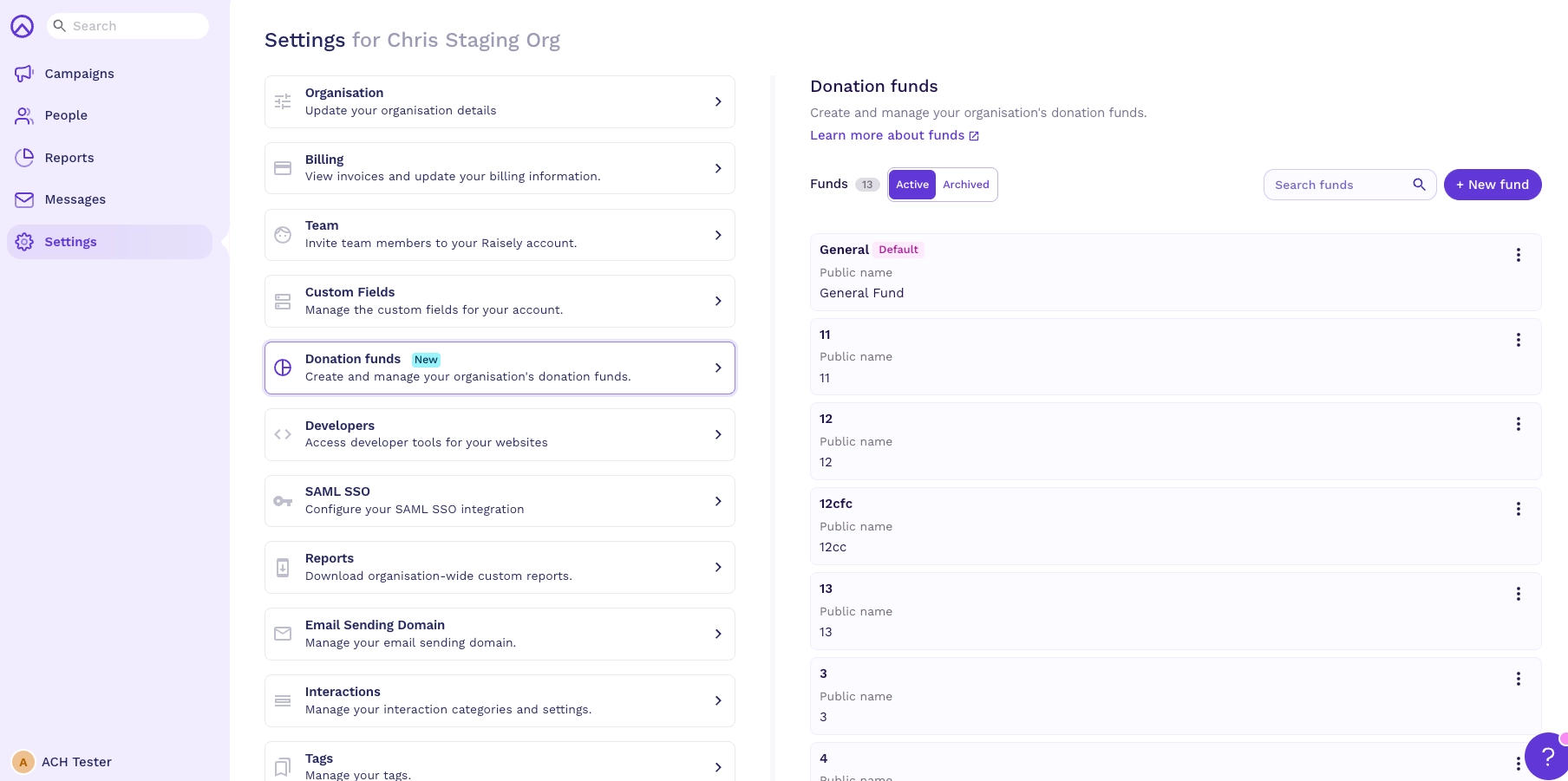
If you have Organisation Admin or Campaign Admin permissions, you have full control over how Designations are structured:
- Create and Manage: Add new designations with both Internal Names (for your accounting team) and Public Names (for your donors).
- Archive and Unarchive: While designations cannot be deleted (to maintain financial records), they can be archived when no longer in use. You can always unarchive them if a specific fund becomes active again.
- Set Defaults: Choose a default designation for your entire organization, or override it with a specific default for individual campaigns.
- Ticket Integration: Designations aren't just for donations. You can assign a designation to an entire ticket purchase for events, ensuring the registration fees go to the right place.
Why Use Designations?
- Donor Intent: Modern donors want to know exactly how their money is being used. Designations provide the transparency they expect.
- Financial Tracking: Simplify your bookkeeping by aligning your Raisely data with your internal accounting funds.
- Compliance: Many non-profits are legally required to track restricted vs. unrestricted funds. Designations makes this process easier.
- Integration Ready: By making this a mandatory field, your data is structured for integrations with other nonprofit platforms. If you use Aplos, each Designation can be mapped to an Aplos Purpose, so donations (including split donations) sync to the right fund.
The Donor Experience
When you enable Designations on your donation form, donors gain the power of choice. On the donation form, they will see a dropdown or selection list (using the Public Name you’ve chosen) where they can select the specific cause they wish to support.
This choice is then recorded as a field on their donation record, providing them with the confidence that their contribution is being handled according to their wishes.
Split Designations
If your campaign offers donors more than one Designation, you can also allow donors to split a single donation across multiple Designations.
For example, a donor could give $100 and allocate $60 to General and $40 to Building Fund in one donation flow.
Split Designations are available for one-time and recurring donations. Donors can split a gift across up to 5 Designations by dollar amount. The split must add up to the total donation amount before the donor can complete their payment.
Split Designations are optional and are enabled per campaign. They are off by default.
What Split Designations support
- Donors can split one donation across multiple Designations by dollar amount.
- A single gift can be split across up to 5 Designations.
- Recurring donations keep the same split allocation on each renewal.
- Admins can view and edit the Designation split after payment.
- Full and partial refunds can be allocated per Designation.
- Receipts, reports, API responses, and webhooks show the split breakdown.
Aplos sync for Split Designations
If your organisation uses the Raisely + Aplos integration, split donations sync to Aplos as one transaction with multiple line items — one line item per Designation.
Each Raisely Designation maps to an Aplos Purpose. This mapping is managed in Aplos. When the donation syncs, each portion of the gift is allocated to the correct Aplos Purpose automatically.
For example, a $100 donation split as $60 General and $40 Building Fund will sync as one transaction with two Designation line items.
If a Designation has not been mapped to an Aplos Purpose, the sync will either follow your organisation’s Default Purpose behaviour or fail clearly as unmapped. Once the mapping is fixed in Aplos, the sync will retry automatically.
Single-Designation donations continue to sync as before. Nothing changes for organisations that do not use split donations.
Split Designation limits
Split Designations are currently available for Donation Form campaigns only.
They do not currently support:
- Ticketed campaigns — ticket revenue continues to use one Fund or Designation under Tickets → Setup.
- Percentage-based splits.
- More than 5 Designations per gift.
- Duplicate Designations on the same gift.
- Offline donation splits.
- Bulk allocation edits.
- Donor Portal split editing.
- Keela impact-area split sync.
How to Enable Designations in Raisely
Designations are turned off by default. If your organisation wants to direct donations to specific funds, you can enable the feature from your org settings.
To turn on designations, go to Organisation Settings → Donation Designations and toggle Enable Designations on.
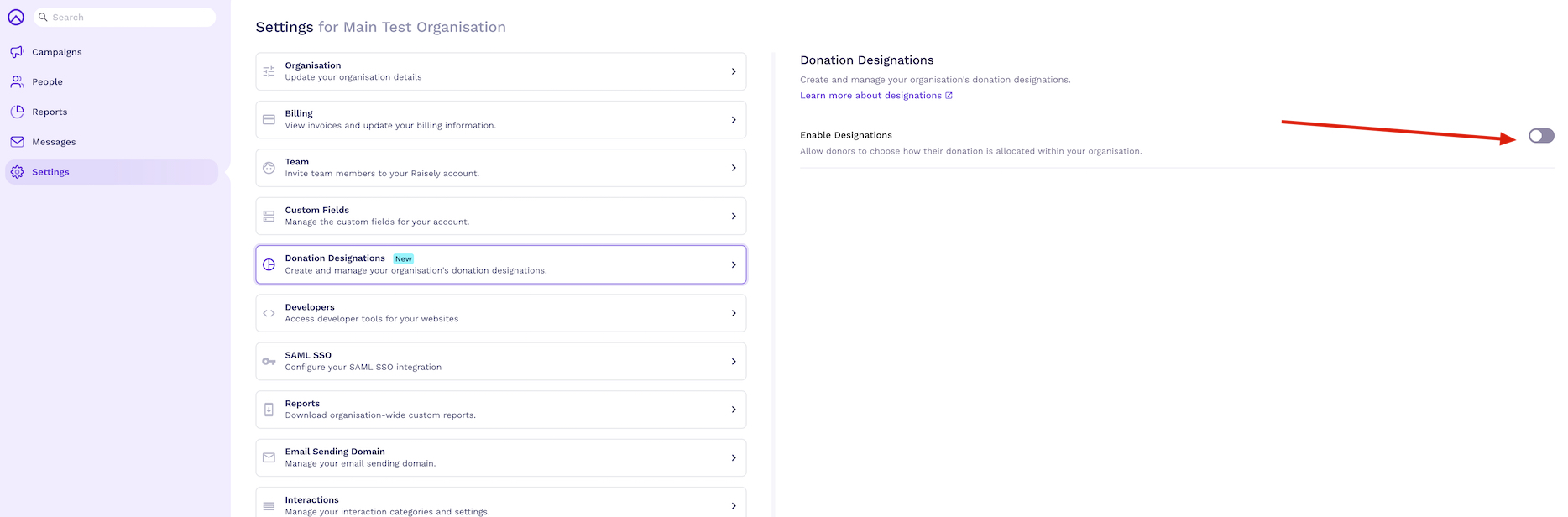
Once enabled, designation options will appear across:
- Campaign Settings — The default designation will automatically be assigned as the Campaign Default as well. You can assign a new default designation and add other options to individual campaigns here.
- Donation forms — donors can choose which Designation their gift supports when you add multiple Designation options. If Split Designations are enabled, donors can allocate one gift across multiple Designations.
- Reports — donation records will include designation attribution
If designations are not right for your organisation, you can turn the toggle off at any time. All related UI will be hidden from your campaigns and forms.
How to Manage Designations in Raisely
1. Managing Organization-Wide Designations
- Navigate to Organization Settings > Donation Designations.
- To add a new designation, click Add New.
- Enter the Internal Name (for your eyes only) and the External Name (what donors see).
- Tip: Make your internal names specific. Use codes or specific accounting names (e.g., 2024-EDU-SCHOLAR) for your Internal Name to make EOFY reporting easier.
- Tip: Use meaningful labels for external names. This is what your donors will see, so ensure it is clear and inspirational (e.g., "Send a Child to Camp").
- Toggle Set as Default if you want this to be the standard selection for new campaigns.
2. Configuring a Campaign
- Enter the specific Campaign you wish to edit.
- Go to Settings > Donation Form Settings > Designations.
- Choose a Default: Select the primary designation for this campaign. Always double-check your campaign-level default before launching a new appeal to ensure the money is being routed correctly.
- Allow Donor Choice: Toggle this on to select multiple Designations that will appear on your donation form. If your campaign has at least 2 donor-facing Designations, you can also turn on Split Designations so donors can allocate one gift across multiple Designations.
- Edit Display Text: Customise the label or instructions donors see when choosing their fund.
3. Archiving Old Funds
If a fund is no longer needed, click Archive. To see old funds or bring one back, toggle to the Archive tab and select Unarchive. This is particularly helpful for avoiding duplicate names.
Frequently Asked Questions
Can we assign one donation to more than one designation?
Yes, for Donation Form campaigns. If Split Designations are enabled, donors can split a single one-time or recurring donation across up to 5 Designations by dollar amount.
The split must add up to the total donation amount before payment can be completed.
Split Designations are not available for ticketed campaigns. Ticketed campaigns continue to use one Fund or Designation under Tickets → Setup.
Do the designation settings only appear if Aplos (fund accounting) is already connected as an integration?
No. Designations are a feature for all Raisely customers, regardless of whether an Aplos integration is connected.
Do Designations apply to recurring donations?
Yes. This applies to all donation frequencies.
Are there limits to the number of designations an organisation can create?
No. There are no limits.
Does an admin need both Org Admin and Campaign Admin permissions to manage designations?
No. A user with Campaign Admin permissions can select from existing designations when configuring a campaign. To create, edit, or manage designations in Org Settings, a user needs Organisation Admin permissions.
How do I turn on Split Designations for a campaign?
Split Designations are enabled per campaign and are off by default.
To use Split Designations, first make sure Designations are enabled for your organisation and that the campaign offers donors at least 2 Designation options. Then go to the campaign’s Donation Form Designation settings and turn on the option to allow donors to split donations across Designations.
Can donors split by percentage?
No. Split Designations are amount-based only. Donors enter the amount they want to allocate to each Designation, and the total must match the donation amount exactly.
Do Split Designations work for recurring donations?
Yes. If a donor sets up a recurring donation with a split, that split is used as the allocation for each renewal. Admins can edit the split for future charges.
How do refunds work with Split Designations?
For full refunds, the refund preserves the original Designation allocation.
For partial refunds, admins choose which Designation or Designations the refund should come from and enter the refund amounts. Raisely includes guardrails to prevent over-refunding.
How do Split Designations sync to Aplos?
Split donations sync to Aplos as one transaction with multiple line items — one line item per Designation. Each line item includes the Designation details and amount, and Aplos maps each Designation to the correct Purpose.
Designation-to-Purpose mapping is managed in Aplos.
What happens if a Designation is not mapped in Aplos?
If a Designation is not mapped to an Aplos Purpose, the sync will either follow your organisation’s Default Purpose behaviour or fail clearly as unmapped. Once the mapping is corrected in Aplos, the sync will retry automatically.
Do Split Designations work for ticketed campaigns?
No. Split Designations are only available for Donation Form campaigns. Ticketed campaigns continue to use one Fund or Designation under Tickets → Setup.
Comments
0 comments
Please sign in to leave a comment.