
Supporting and encouraging your fundraisers throughout your campaigns may be one of the most significant areas in campaign success. In this guide, we’ll explore all areas of managing your fundraisers so they are supported and encouraged! Let’s explore…
Skip Ahead To
Managing Fundraisers' Profiles
Fundraisers: the Basics
Fundraisers are people who dedicate their time to raising money for a charity. They may join a Peer to Peer Campaign, where they take on a challenge and gather donations from friends and family, or start their own fundraising campaign through a Community Hub with unique ideas. Charities rely on supporting and encouraging fundraisers to grow. Raisely helps charities set up these campaigns and hubs, giving fundraisers a personalised webpage to collect donations and providing communication tools to motivate their efforts.
Signing Fundraisers Up
The first step to supporting fundraisers is to gather fundraisers. Raisely’s Sign up Form is an online form enabling a fundraiser to enter their details and preferences, and in turn creates an account & a unique personalised Profile for them. Their account details are stored in the Raisely Supporter Management Tool, though their campaign Profile can be accessed within the Campaign itself (as well as the Supporter Management Tool).
ADDING A SIGN UP FORM
- From the campaign sidebar, select Pages. You can choose the Home page or another custom page, though we recommend using the Sign up Page as it keeps the form on a separate page you can then link to
- Select the + symbol on the bottom-right, choose Add a Block, and search for Sign up
- Click the block and place anywhere on the page
The form captures basic user details (name, email) in the first step, followed by campaign preferences (donation goal, profile name, fundraising reason). Optionally, fundraisers can join a team or add a self-donation or registration fee.
Form settings can be customised in Settings from the sidebar or within the block's settings on the page.
Fundraiser's Profiles
When a fundraiser completes the Sign Up form, Raisely stores their details and uses them to populate their Profile Page and Dashboard.
The Profile Page is a dynamic template that automatically updates with the fundraiser’s information and is visible to their audience via a unique shareable link.
The Dashboard, accessible after login, allows the fundraiser to edit their profile and track their campaign progress.
Keep fundraiser and admin login emails separate
Raisely uses different access paths for organisation administrators and campaign fundraisers.
- Organisation administrators sign in through the Raisely admin login.
- Fundraisers sign in through the campaign site to access their fundraiser dashboard.
- We recommend using a different email address for each type of account.
If an email address is already used for Raisely admin access, a password reset started from the campaign login may not generate an email for that address. This can happen because the address is associated with an admin user rather than a standard campaign fundraiser login.
If this happens:
- Check the Fundraiser Welcome email for the fundraiser’s login link.
- Use the login link to access the fundraiser dashboard.
- If the link is unavailable or no longer works, contact Raisely Support.
If the fundraiser needs to use a different email address, create or use a separate People record and assign the existing fundraising profile to it. Please contact Raisely Support if you need assistance with this.
Managing Fundraisers' Profiles
There are a few things you can do to manage the Fundraisers Profiles. Let’s explore:
Archive a Profile
1. To archive a profile, select Profiles from the campaign sidebar, then select into the profile you want to remove.
2. Click the red Archive button in the top right-hand corner. Doing this will remove the profile from your live site and your active Profiles list, and make it publicly inaccessible. Any donations made to the profile stay in your campaign's Donations list and continue to count towards your campaign's total, so there's no need to move them.
Note: if you archive a group page while the group still has members, the members won't be able to leave the group or join any others. Make sure to reassign members to the campaign or a new group first!
3. If you need to restore the profile at a later date, go to Profiles and click the Archived toggle to see a list of your archived profiles.
4. Then, select the profile you want to restore and click the Unarchive button in the top right-hand corner. Tip: if you'd like an archived profile's donations to appear against a different profile or the campaign itself, you can move them individually. See Managing Donations & Donors.
Change a Profile's Team
1. Find/Search/Select the Profile within Profiles, and select Edit.
2. A window will appear with all the profile's details. Scroll down to the 'Team or organisation the profile belongs to' field. Type in the new team's name and then select it when it shows up.
3. If you'd like someone to be part of no team, select the Campaign Name as their team.
4. When you're done, select Save Profile.
Change a Profile's Owner
The profile owner is the person who can log in and control that fundraising profile.
Note: Changing the profile owner is different from changing the email address of the profile owner. A profile owner should be an entirely separate person in your account. You'll also need to ensure that the user record for the profile owner exists.
1. Go to Profiles from the navigation bar on the left-hand side of the admin panel while inside your campaign, then click into the profile you want to edit.
2. Click on the Edit button at the top right of the screen.
3. In the window that opens, scroll down to the field called "Select a profile owner". Search for the new owner by name or email and wait for results to show. When they do, select the owner you'd like to use.
4. Hit "Save Profile" to finish, and confirm the change is reflected under the profile's Owner.
Update Profile Fields
You can help the fundraiser to update their profile fields within the Raisely admin. From within the Profile record, click the edit button to view all of the profile's data. You can update any fields including their fundraising goal, cover/profile photos and any other custom profile field.
Moving a Donation
If a donation was made to the wrong profile, you can easily move this from within the Profile record's page.
1. Go to the Profile record and look for the Recent Donations section.
2. Click on the Donation and select Move.
3. In the popup window, you can search for the campaign as well as the profile.
4. Click Move donation to finalise the change.
Bulk Profile Importing
There may be times where you will want to upload Profiles on behalf of your fundraisers. It may be a repeat campaign with the same fundraisers or you have collected sign up information offline. Raisely provides the option of importing new Profiles and Team Profiles in bulk via CSV file.
Below you can find sample CSV files containing ALL the required fields you'll need to import. Use these as a template for creating your imports, making sure to view each column in the spreadsheet.
To bulk upload Profiles, simply:
- Select Profiles from you campaign sidebar, then select the Import button up the top
-
Choose whether you’ll be uploading Team Profiles or Individual Profiles
Note: If you are placing Individuals into Teams, the Team Profile must be created first
- Drag In or Search for your CSV file, and select Continue.
- You can then map your fields to the Raisely defaults. Be sure to view the samples above to understand each field. You can utilise any Custom Field available in Person or Profile. Once done, select Continue
- You can add Tags, and select Continue when ready. Tags are a great way to segment your audience later on.
- Turn switcher to ON if you wish to activate your automated messages for new sign ups, then select Complete Import
BULK PROFILE EDITING
The Profile Importer can also enable you to bulk edit Team & Individual Profiles. For example, say you want to change the Team Profile owner, you’d simply change the names & email in the CSV, re-import, and the changes will take place.
Note: the Page URL is the unique identifier for Profile records, therefore it must match the original otherwise a new profile will be created. An example of this would be "james-smith" for an individual fundraiser with the following url: https://campaignsite.raiselysite.com/james-smith. So in this instance, you would only enter james-smith into the column.
Assigning Child Profiles (e.g. Individual/Team profiles) to Parent Profiles (e.g. Team/Organisation profiles)
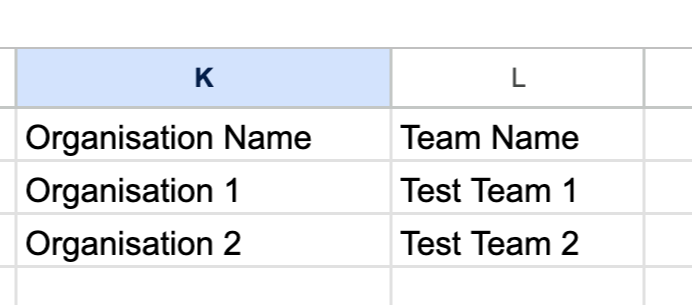
When importing your profiles, you may want to sort your profiles into their various teams/organisations. You need to first ensure that the Team/Organisation Profiles have been created within the Raisely campaign. Once that is done, you'll need to ensure you have the following fields and data added to your CSV file for the assignment:
Note: You'll want to take note of any spaces/special characters when entering in the Organisation/Team name. If they are not an exact match, the Organisation/Team will not be assigned during the bulk import process.
- If assigning Individual profiles to Team profiles
- Column Name: Team Name
- Value: Name of the Team Profile (e.g Team 1)
- If assigning Team profiles to Organisation profiles
- Column Name: Organisation Name
- Value: Name of the Organisation Profile (e.g Organisation 1)
Communicating to Fundraisers
Raisely provides automatic messages that are sent to Fundraisers at different times in the Campaign. The messages can be fully customised and enabled/disabled if needed. Explore these guides for more information on how to use Messages for a great Fundraiser experience:
FAQ’s
How do I permanently delete Profiles?
If you need to delete a profile entirely, contact us. Doing this will permanently remove all information relating to a profile, and it is not reversible.
Can I edit the Thank You messages from Fundraisers that appear in the donation stream?
Yes that is possible. You can edit the donation message by locating the donation card, clicking on "Edit", and updating the message in the donation message field.
Can I move active fundraiser profiles from one campaign to another?
Yes, please contact Raisely Support and share with us the links of the fundraiser profile and the new campaign you want us to move the profile(s) to. If they have received live donations, please ensure the new campaign has a payment gateway connected and set to active before we complete the move.
Do donations still count after I archive a profile?
Yes. Archiving a profile only hides it from your live site and your active Profiles list. It doesn't delete or refund any donations. Donations made to an archived profile stay in your campaign's Donations list and continue to count towards your campaign's total, so you don't need to move them. If you'd prefer them to show against another profile or the campaign itself, you can move them. See Managing Donations & Donors. You can restore an archived profile at any time from Profiles > Archived > Unarchive.
Cannot find the support guide you are after? Head on over to our YouTube channel 📺 for more creative content to help you go further. You can even leave us comments, suggesting new content ideas.
Comments
0 comments
Please sign in to leave a comment.