
The more people know about your campaign, the greater the chance that a malicious actor may find it.
Raisely continues to make substantial improvements to our anti-fraud measures to prevent malicious activity. These improvements, along with Stripe's fraud-prevention Radar, are usually enough to keep your campaign from being used for card testing.
Though even with these protections in place, you might open your campaign dashboard to see a fraudulent activity message. So let's explore ways you can enhance your campaign's security.
Skip Ahead To
Understanding Fraudulent Transactions
P2P Fundraiser Email Verification
API Authentication Requirements
Identifying Fraudulent Transactions
Understanding Fraudulent Transactions
Donation sites are popular with fraudsters, often used to check the validity of stolen credit cards. They attempt to make a small donation to test if the credit card is still valid, or if the bank has blocked/removed the card.
The donation amount is usually quite small (less than $10) in order to avoid detection by both the card owner and the bank. Once they validate the card is still working, they go on to use the card to make larger purchases elsewhere.
Raisely will block suspicious donation attempts in order to protect your campaign from scammers and credit card testers. If you see a warning appear on the dashboard, it's usually a sign that the system is working just fine.
Though we recommend you check your recent donations in case:
- The transactions were legitimate donations, and you need those donations processed, OR
- Not all of the fraudulent donations were caught by our filters
Steps to Enhance Protection
Raisely allows you to optimise fraud protection to suit your needs. These settings only affect Raisely's fraud protection systems. If a donation is blocked by Stripe or PayPal, you'll have to contact them for further information.
To access your fraud protection settings, from the campaign sidebar, select Settings > Fraud Protection. Here are the settings explained:
Fraud Protection (Disable)
If you're running a fundraising event, or just taking lots of small donations in the same location, this could trip our anti-fraud protection and cause donations to be blocked. You may want to temporarily disable fraud protection to prevent this.
If you're concerned you might forget to turn it back on, don't be; we don't allow fraud protection to be disabled indefinitely, and the system will automatically re-enable it after 24 hours.
Important: This temporary setting applies only to transaction fraud monitoring. It does not disable Raisely’s mandatory spam protections, including CAPTCHA, content filtering or P2P fundraiser email verification.
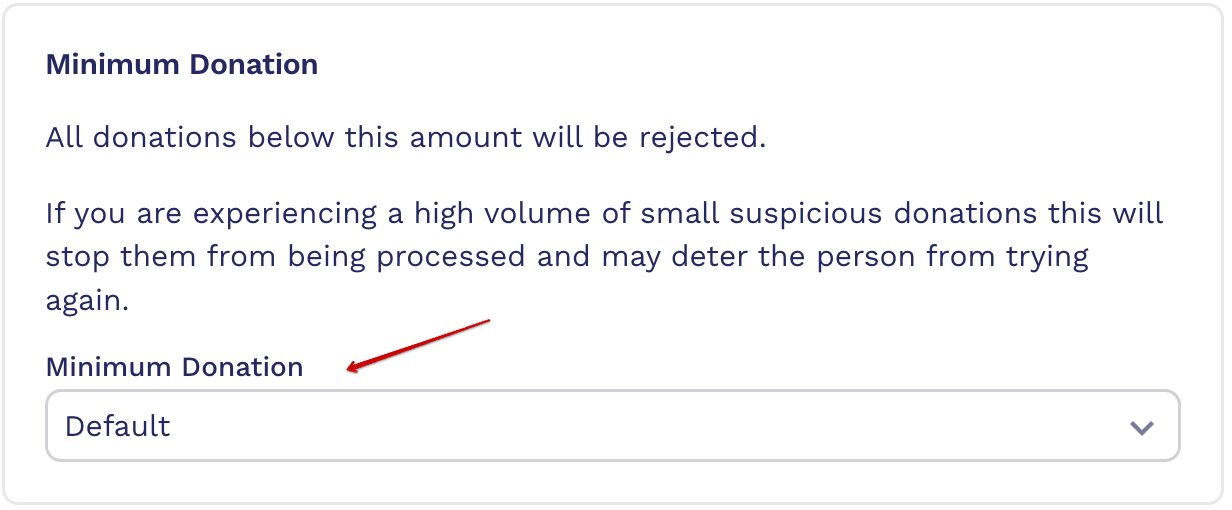
Minimum Donation Amount
This setting can be very useful if you are experiencing sustained, high volume, low-value donation attempts. It allows you to nominate a minimum donation amount for your campaign. Any attempts to donate below this value will be automatically blocked regardless of any surrounding information or data.
If your campaign frequently receives lower-value donations, keep in mind that this setting can inadvertently block legitimate donations. So if you do enable this setting, carefully consider the average donation amount that your campaign is currently receiving.
Enhanced Card Testing Protection
Enhanced Card Testing Protection takes a more aggressive approach to identifying suspicious transactions. If you're finding that card testers are making donations that aren't getting blocked, enabling this should help.
You can keep enhanced protection on for as long as you like, or indefinitely, but be sure to take a look at the blocked donations once in a while to make sure it's not stopping legitimate donors.
Mandatory Spam Protection
In addition to financial fraud monitoring, Raisely provides built-in spam protection to prevent malicious bots from spamming your campaign with fake signups or blog posts.
Note: While no web-based form can block 100% of sophisticated spam, these settings provide an increased layer of mitigation to stop the majority of bot activity.
- Signup form CAPTCHA: Helps prevent automated and fake fundraiser registrations.
- Blog and profile CAPTCHA: Helps prevent automated submissions to fundraiser profiles, blog posts and comments.
- P2P fundraiser email verification: Requires eligible fundraisers to confirm their email before accessing their fundraiser dashboard or making their profile publicly available.
- Content filtering: Prevents profile and blog content containing known spam or scam patterns from being published.
P2P Fundraiser Email Verification
How it works:
- A fundraiser completes a Peer-to-Peer signup form.
- If email verification is required for that signup, Raisely places the fundraiser into a pending-verification state.
- The fundraiser sees a screen asking them to check their email.
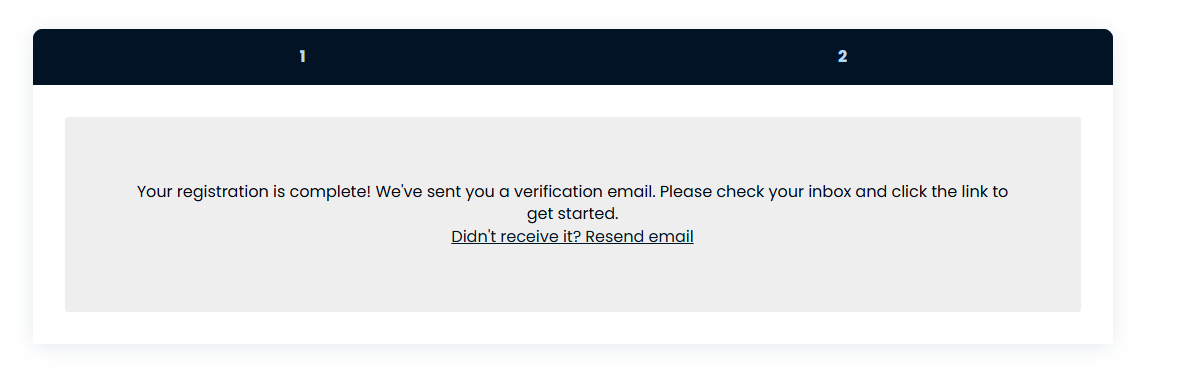
- Raisely sends the campaign’s active Account Confirmation message containing a secure verification link.
- The fundraiser selects the link to confirm their email.
- Once verified, the fundraiser can access their dashboard and their profile can appear publicly.
If the fundraiser tries to log in before completing verification, they will be directed back to the verification screen. They can request another verification email from that screen.
Signups that include a payment: If the fundraiser completes a monetary transaction during signup, such as making a donation or purchasing a ticket, the separate email-verification step may be bypassed. Raisely relies on the security checks completed during the payment process for these signups.
Until verification is complete:
- The fundraiser cannot access their fundraiser dashboard.
- Their fundraiser profile is not publicly accessible.
- They do not appear on leaderboards or other public campaign elements.
- Blog posts or content connected to the profile are not publicly visible.
- Their Fundraiser Welcome message may be held until verification is complete.
Note: Pending profiles remain visible to organisation administrators under Campaign → Profiles.
Can email verification be disabled?
Required: Keep the Account Confirmation message active
The Account Confirmation message must be active on every P2P campaign. Raisely uses this message to send the fundraiser’s email-verification link.
If the message is inactive, fundraisers who are required to verify their email will not receive the link and may be unable to access their dashboard or publish their fundraiser profile.
Go to Messages → Automatic Messages, locate Account Confirmation, and confirm that it is active.
If you have customised this message, use wording suitable for both new and returning fundraisers. Avoid copy that assumes the recipient has fundraised previously.
Recommended Wording
Subject: Confirm your email address
Thanks for signing up to fundraise.
Before you can access your fundraiser dashboard, please confirm your email address using the button below.
Button: Confirm my email
If you did not complete a fundraiser signup, you can ignore this email.
The Confirm my email button should use: {{campaign.url}}/confirm/{{user.newAccessToken}}?access_token={{user.accessToken}}.
Help a Fundraiser Complete Verification
If a legitimate fundraiser cannot find or use the verification email:
- Ask them to check their spam or junk folder.
- Confirm that they entered the correct email address.
- Ask them to select Resend email on the verification or login screen.
- Confirm that the campaign’s Account Confirmation message is active.
- Check that the campaign’s sending domain is configured correctly.
If the fundraiser still cannot complete verification, an organisation administrator can manually verify the profile:
- Open the campaign in Raisely Admin.
- Select Profiles.
- Filter for profiles pending verification, if needed.
- Locate the fundraiser.
- Select Verify.
Manual verification is restricted to organisation administrators. Only use it after confirming that the profile belongs to a legitimate fundraiser.
Form Name Field Validation
Raisely applies additional validation to name fields on signup, lead and ticket forms. Additional front-end validations are now in place to help reduce spam submissions and keep your supporter data clean.
These changes do not affect donors or supporters entering legitimate names, and there are no changes to API behaviour for organisations using custom integrations.
If you or a supporter run into any unexpected issues with a form, please do not hesitate to reach out to our support team and we will be happy to help.
Keyword blocking (profiles & blog posts)
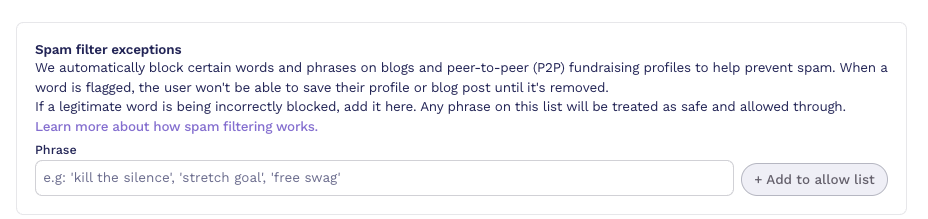
To help reduce spam content, Raisely may block a fundraiser profile or blog post from being saved if it contains words or phrases commonly used in spam or scam posts.
Spam-filter exceptions allow an organisation to approve specific legitimate words or phrases. They do not turn off Raisely’s broader spam protection.
How it works:
- The check runs when someone creates or updates a fundraiser profile or blog post (e.g. name, description, and body/content fields).
- If blocked, the content won't save until the wording is updated.
- This check is not retroactive (it won't scan content that's already live), and it does not apply to donations, comments, or messages.
What fundraisers will see:
If a blocked term is detected, they'll see an error such as:
"This content looks like spam. Please edit before you can submit, or contact support for help."
If legitimate content is blocked:
Occasionally, genuine campaigns may use terms that overlap with spam patterns. If this happens, you can go to Campaign Settings → Fraud Protection → Spam filter exceptions and enter the specific words and phrases that you would like our system to treat as safe and allowed through:
Spam fraud protection: API authentication requirements
View full section
To strengthen spam protection, Raisely requires authenticated API requests for protected campaign endpoints.
What is changing
For campaigns with CAPTCHA enabled, the following public API endpoints will require your campaign API key (raisely-sk-*):
POST /v3/campaigns/:campaign/registerPOST /v3/profiles/:profile/members-
POST /v3/users/upsert— lead-form submissions only POST /v3/posts
The campaign API key must be stored in a backend service. Do not expose it on the front end.
You can find your campaign API key in Campaign → Settings → API keys.
Registration requests must include data.user
When registering a participant with a campaign API key, the request must include the participant's details nested under data.user.
At minimum, data.user must include the participant's email.
If the participant's details are not nested under data.user, the request will fail with a clear error instead of silently attaching the new profile to your admin account.
Correct request shape for a new registration
{
  "data": {
    "user": {
      "firstName": "Jordan",
      "lastName": "Example",
      "email": "jordan@example.com",
      "password": "AtLeast12Chars!"
    },
    "profile": { "name": "Jordan Example", "type": "INDIVIDUAL", "currency": "AUD" }
  }
}
Registration requirements
- Participant fields must be nested under
data.user. - Values placed loosely at the top level, such as
data.firstName, are ignored. -
data.user.emailis required. - The password must be at least 12 characters.
Team member and post requests should include data.userUuid
For team member requests using /members and post requests using /posts, pass the participant's user ID as data.userUuid.
This field is optional, but strongly recommended. If data.userUuid is not included, the record is attributed to the API key owner, which is your admin account, rather than the intended participant.
If you include data.userUuid, the user must belong to the same organisation as the campaign.
Lead-form submissions through /users/upsert
The /users/upsert endpoint is only affected when it is used to submit a lead form.
A request counts as a lead-form submission when it includes an interaction with:
"categoryPath": "lead-form-submitted"
For these lead-form submissions, CAPTCHA-enabled campaigns will require your campaign API key (raisely-sk-*).
Other uses of /users/upsert are not affected. For example, you do not need an API key or CAPTCHA when using /users/upsert to:
- Create or update a user
- Add a tag
This remains true even on a CAPTCHA-enabled campaign.
Example lead-form request requiring a campaign API key
POST /v3/users/upsert?campaign=<campaign-uuid>
Authorization: Bearer raisely-sk-xxxxxxxxxxxxxxxx

{
  "data": {
    "email": "jordan@example.com",
    "firstName": "Jordan",
    "lastName": "Example",
    "interaction": {
      "categoryPath": "lead-form-submitted",
      "detail": { "private": { "formName": "Stay in touch" } }
    }
  }
}
Required actions
If your organisation uses a custom API integration:
- Store your campaign API key (
raisely-sk-*) in a backend service. Never expose it on the front end. - Update registration calls to nest participant details under
data.user, includingemail. - For member and post calls, include
data.userUuidso records attach to the right participant. - For lead-form submissions via
/users/upsert, include your campaign API key on CAPTCHA-enabled campaigns.
If your custom integration is failing after these requirements were introduced, contact Raisely Support and include the campaign URL, affected endpoint, request structure and returned error.
Identifying Fraudulent Transactions
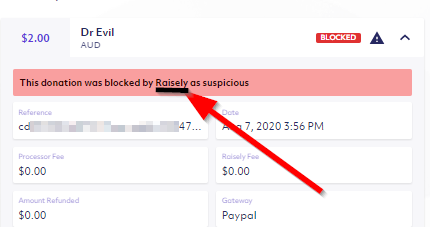
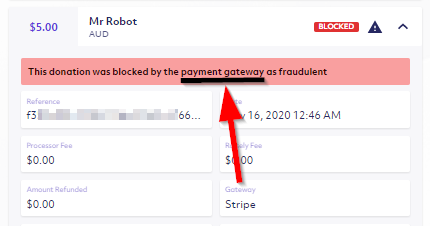
You can filter your transaction listings to see only those flagged as fraudulent. From your campaign sidebar, select Donations > then click Filter (top bar) > Fraudulent. You can identify who blocked a suspicious donation by clicking it and checking the note at the top of the donation details.
For example, this donation was blocked by Raisely:
And here is a donation that was blocked by the Payment Gateway (in this case - Stripe):
Cannot find the support guide you are after? Head on over to our YouTube channel 📺 for more creative content to help you go further. You can even leave us comments, suggesting new content ideas 🤯
Comments
0 comments
Please sign in to leave a comment.